

Where to find the Video Tools
- Open the chat
- Click the Tools button (last icon at the bottom left of the message box)
- Look for the tools section/list and select a Video tool
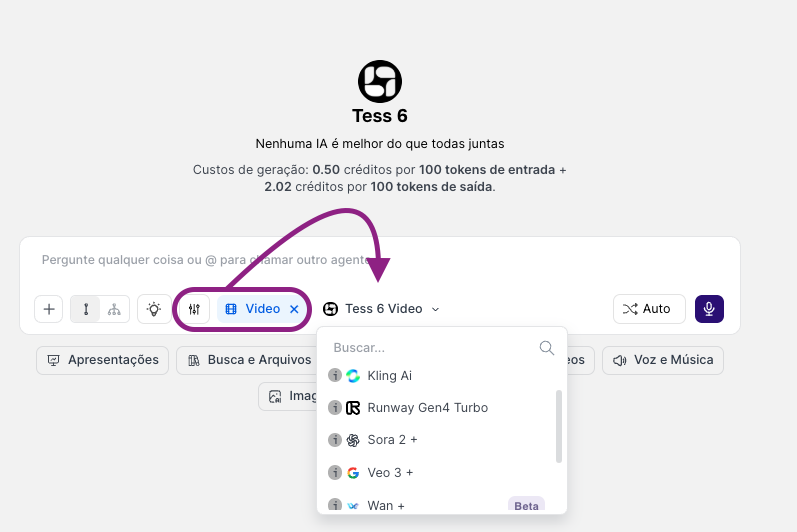
- Tess 6
- Kling
- Runway
- Sora
- VEO
- Wan
- Seedance
- Hailou
Why are there several video tools/models?
Because each model interprets prompts in a different way and tends to stand out in specific styles. In practice, having several models gives you more aesthetic options (realistic, animated, cinematic, etc.), more chances to nail your project’s look with less trial and error, and greater flexibility to test the same prompt in different models and choose the best result.How to use the Video Tools
In the Video Tools menu, choose one of the models from the list. Then write a prompt thinking in terms of “movement”, since video is not just appearance; it’s action, camera, and duration.Include the Elements
- Subject: what appears
- Action: what happens
- Environment: where it happens
- Camera movement: static, travelling, close-up, slow motion…
- Style: cinematic, realistic, animation, etc.
- Aspect ratio (if needed): 9:16, 16:9, 1:1
Prompt Examples
- “Aerial travelling shot over a dense, foggy forest at dawn; sunrays cut through the mist and reveal a winding river.”
- “Close-up of hands typing on a mechanical keyboard, blue and purple neon light, shallow depth of field, stable camera.”
The same prompt can generate very different results depending on the model. A simple exercise is to write a very detailed prompt, generate it in two different models, and compare: realism, camera movement, consistency (objects/face/hands), “mood”, and lighting.