

What are Tools?
They are additional capabilities that Chat can trigger on demand. In practice, they turn the chat into an “execution panel” for real tasks, not just text answers. Examples of what Tools allow:- Create image, video, music, and voiceover from prompts
- Edit videos and improve quality (upscale, chroma key, etc.)
- Analyze large spreadsheets/CSVs, perform mathematical operations and complex calculations, and generate insights - Deep Analysis
- Read, edit, and transform files of all types - Manage Files
- Trigger automations and connect with apps - Integrations
- Work with voice (Speech) and audio (Music)
Where to find them and how to use them in Chat?
On the chat screen, near the message box, there is a tools button (an icon similar to the volume sliders on a sound mixing desk). When you click it, a menu opens with the list of available Tools. Choose the tool you want to use, make your request in natural language, explaining the objective and, if you have them, providing the necessary files/links. By clicking the info button next to each tool, you’ll find a brief explanation of its applicability. If you see the need for adjustments, variations, improvements, and revisions, just let the chat know and the LLM will use the conversation context to refine without starting over from scratch.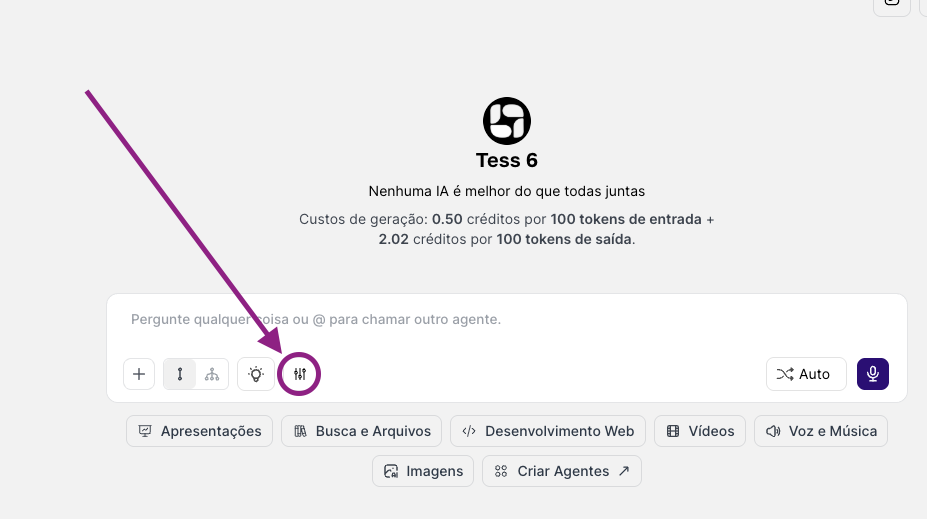
Main Chat Tools (overview)
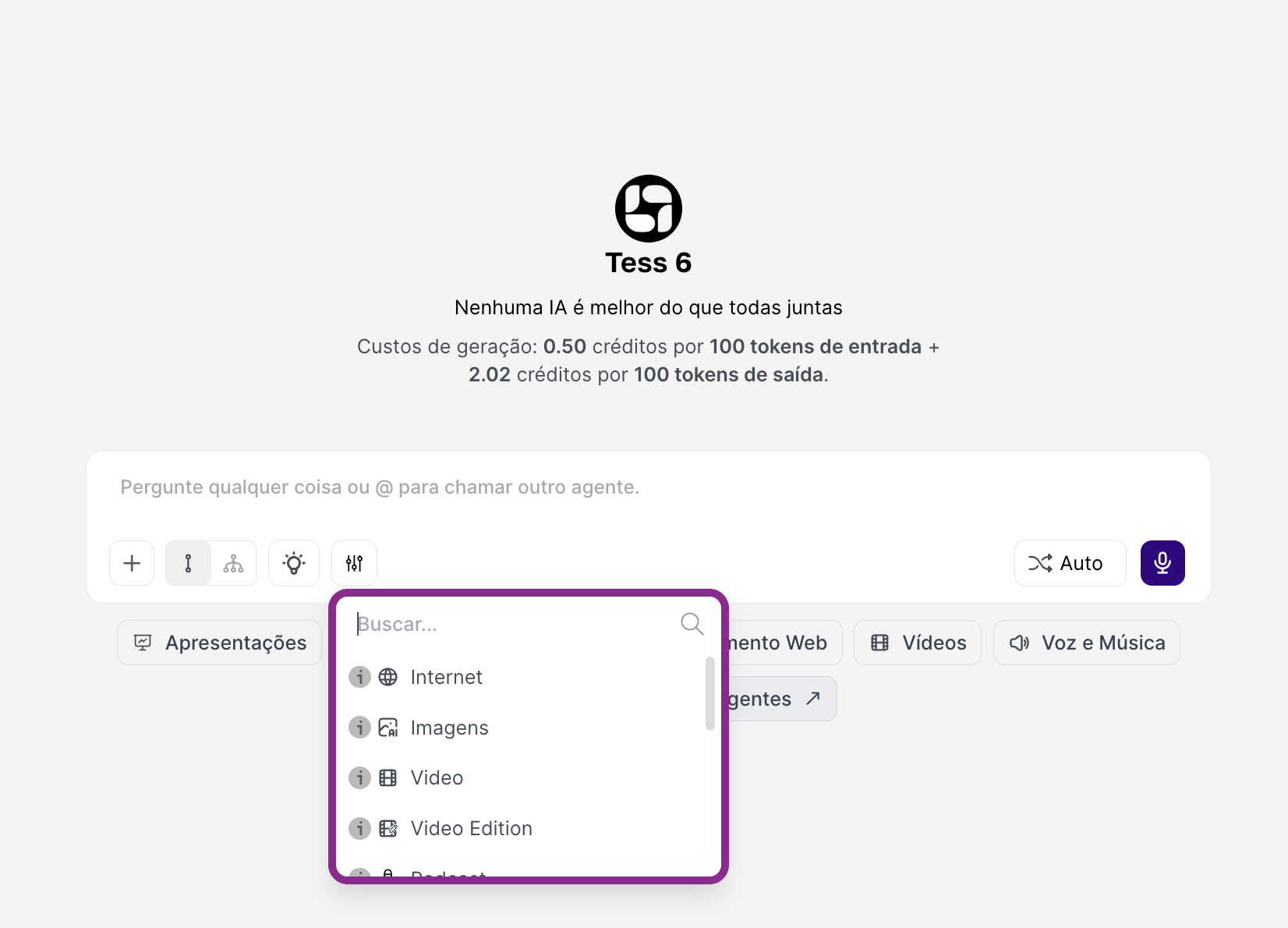
- Internet: For different types of web research. Search engine searches, social media queries, Deep Research (for more elaborate research), academic mode.
- Images: Create images within the chat itself, using one of several available models, such as Nano Banana, TESS 6, GPT 5 Image, Ideogram 3, etc. There are also editing options, such as background removal, upscale, and vectorization (SVG).
- Videos: Create images within the chat itself, using one of several available models, such as Sora, TESS 6, Google VEO, Kling AI, etc.
- Video Editing: Video editing, with tools such as Film Maker (stitching clips together), Frame Extraction, upscale, angle changes, visual effects, Chroma Key Background, etc.
- Speech (Voiceover / Voice): To convert text into voice and create voiceovers. Ideal for voiceovers, classes, podcasts, videos, and presentations.
- Music (Music): To generate soundtracks, jingles, and songs from prompts (genre, BPM, instruments, mood, duration). Ideal for content, videos, intros/outros, and background music.
- Deep Analysis (Deep Analyses): For advanced data analysis and machine learning on spreadsheets, CSVs, and structured datasets. Ideal for reports, segmentation, usage patterns, churn, trends, and metrics diagnosis. Tip: always use it with robust AI models and write more literal prompts.
- Manage Files (File Management): To access, read, and modify files (documents, PDFs, GIFs, and others). Ideal for reviewing documents, extracting information, reorganizing files, and generating edited versions. Tip: always use it with robust AI models and write more literal prompts.
- Integrations (Integrations / Automations): To connect the chat to automations and apps via platforms like Zapier, Make, and n8n (and/or HTTP calls), enabling you to trigger tasks such as: sending emails, creating tickets/tasks, updating spreadsheets and CRMs, notifying teams in Slack/Teams, etc.
- Avatar: Create avatars within the chat itself, using one of several available models, such as HeyGen, OmniHuman, and Wan.
- No Tools: Disables tool usage (text only).