

- answer questions about the content of the file
- summarize, extract data, and create outputs from the material
- keep the context of the interaction (especially useful for support, onboarding, and projects)
Keep in mind that when you add a document to the Knowledge Base of a conversation, only that conversation will be trained with the document in question. If you start a new chat, you’ll need to attach the file again.
To avoid rework, if it’s a repetitive task, we recommend creating an agent and attaching the file to the agent’s Knowledge Base (not the chat), so every conversation started in that agent will already be trained with the document that is part of your Knowledge Base.
To avoid rework, if it’s a repetitive task, we recommend creating an agent and attaching the file to the agent’s Knowledge Base (not the chat), so every conversation started in that agent will already be trained with the document that is part of your Knowledge Base.
Two ways to send files (and the difference between them)
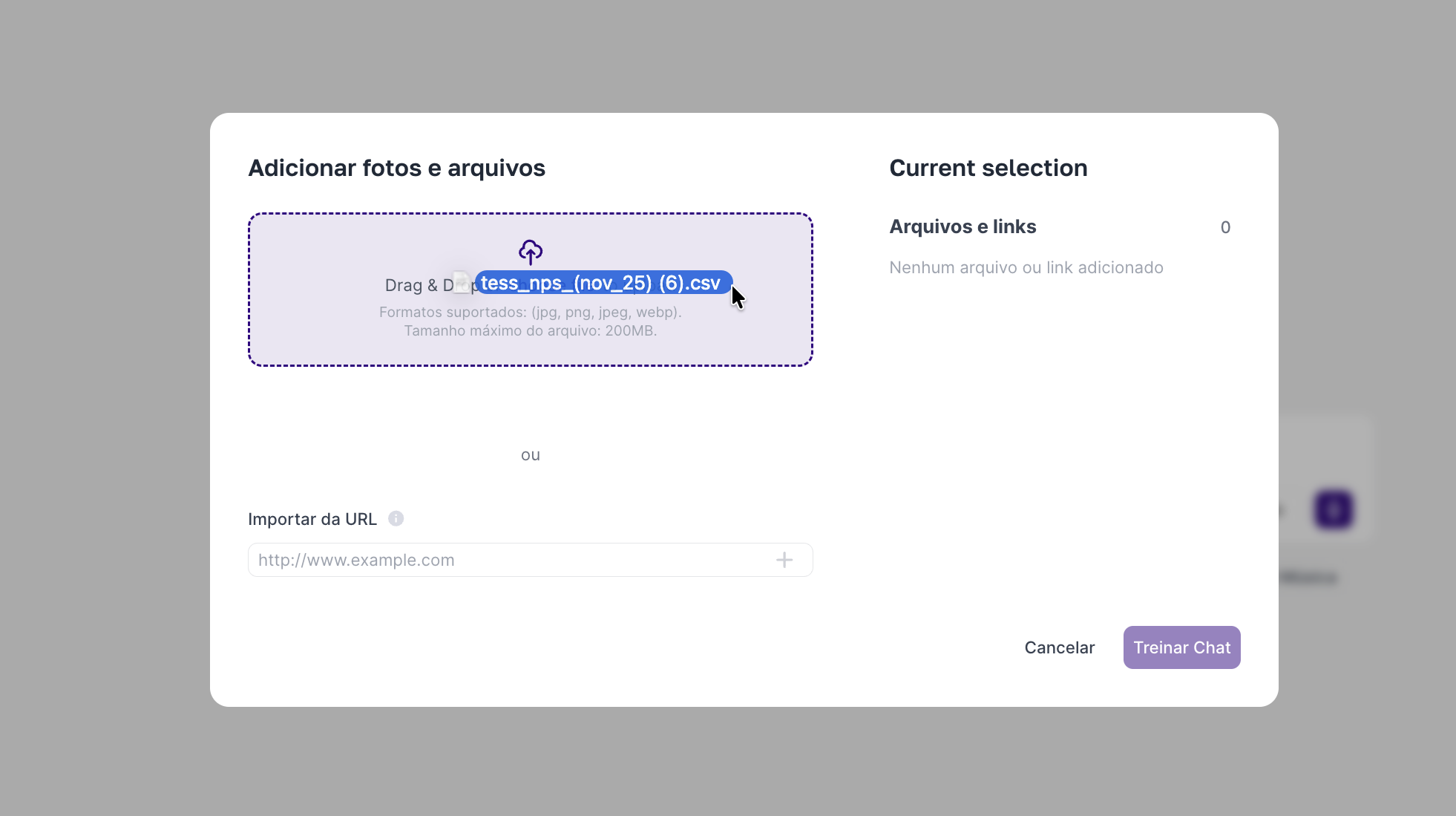
Quick upload (drag or Ctrl+V)
You drag the file into the chat, or paste (Ctrl+V) when applicable. It’s the fastest way to attach something and continue the conversation.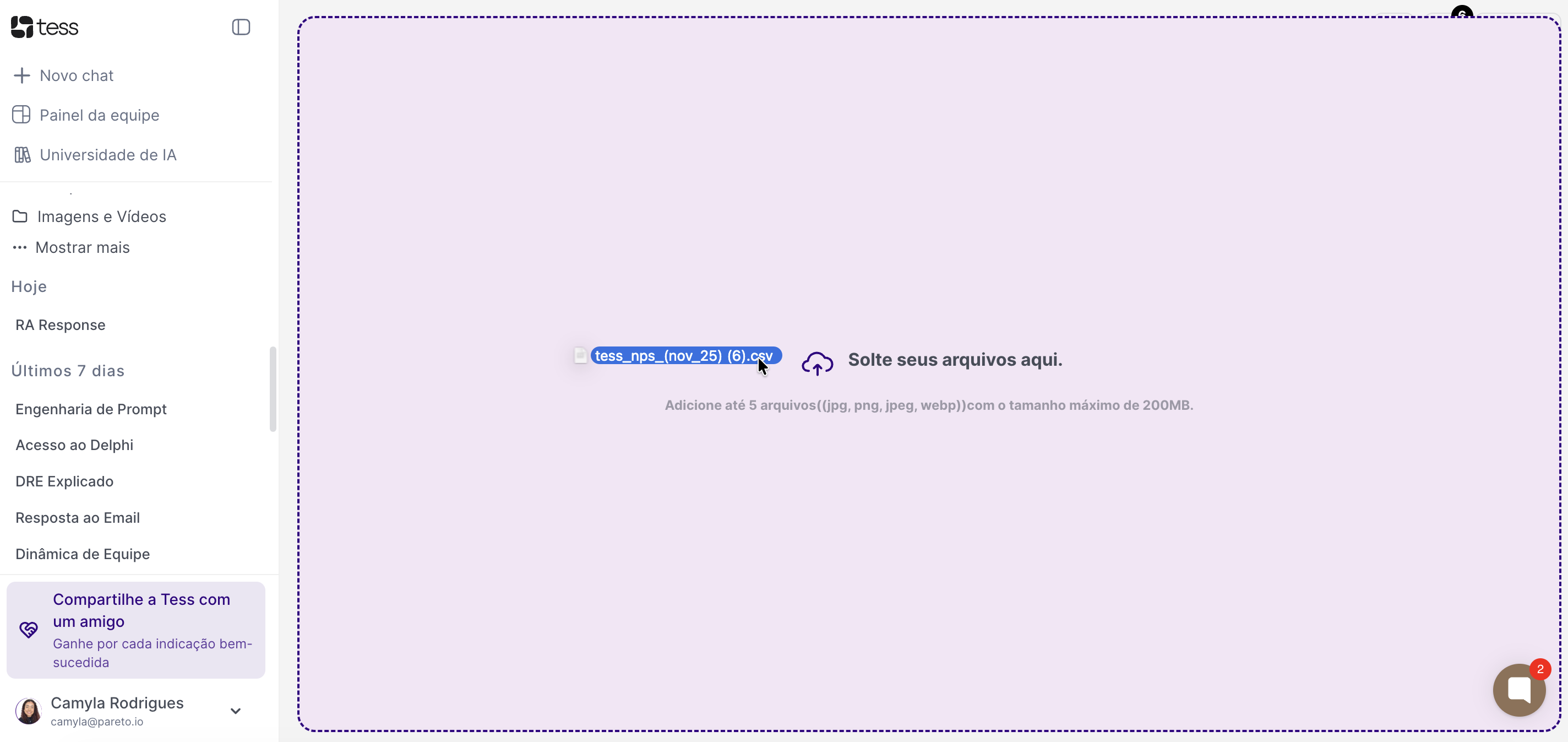
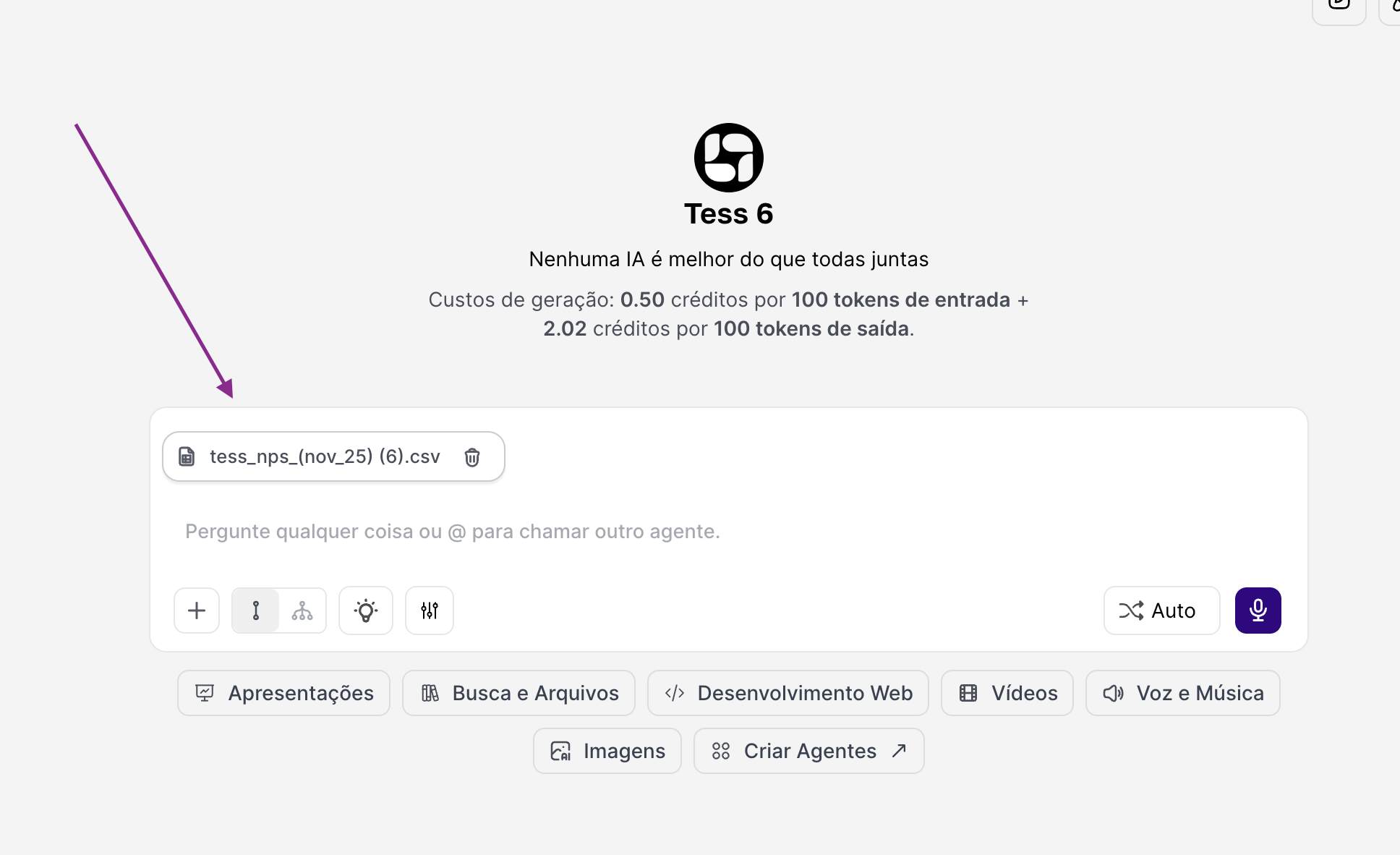
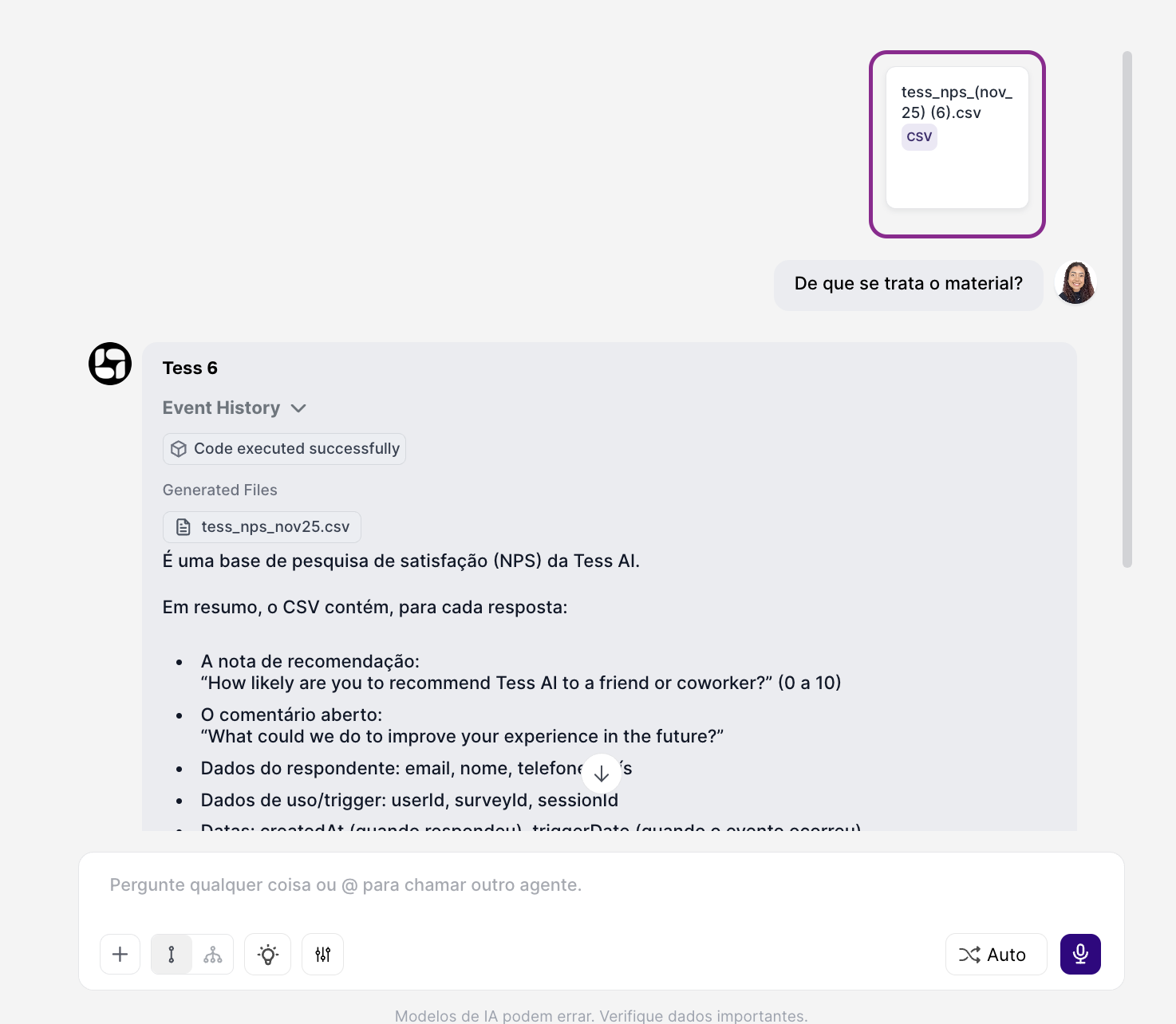
- Limitation: It usually doesn’t let you choose advanced processing options. In other words, you attach it, but you don’t control the file processing (RAG or Deep Learning).
- When to use: When you just need to attach something quickly and don’t need settings (e.g., a simple image, a CSV, a text-based PDF, a link).
Advanced upload (via the “+” button)
In the chat, click the “+” button (tools/attachments) next to the message box. Then, select the file upload/attachment through that path.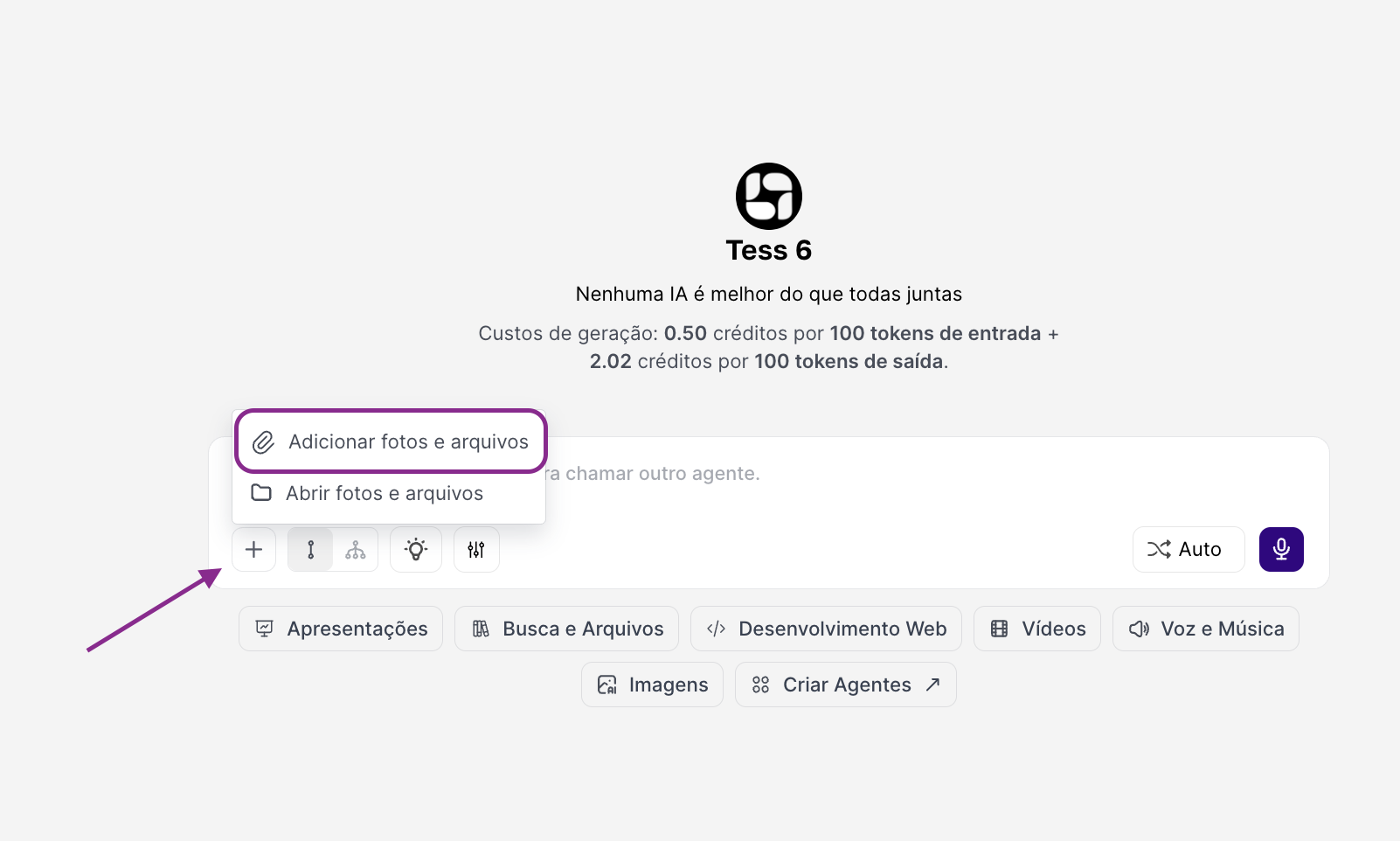
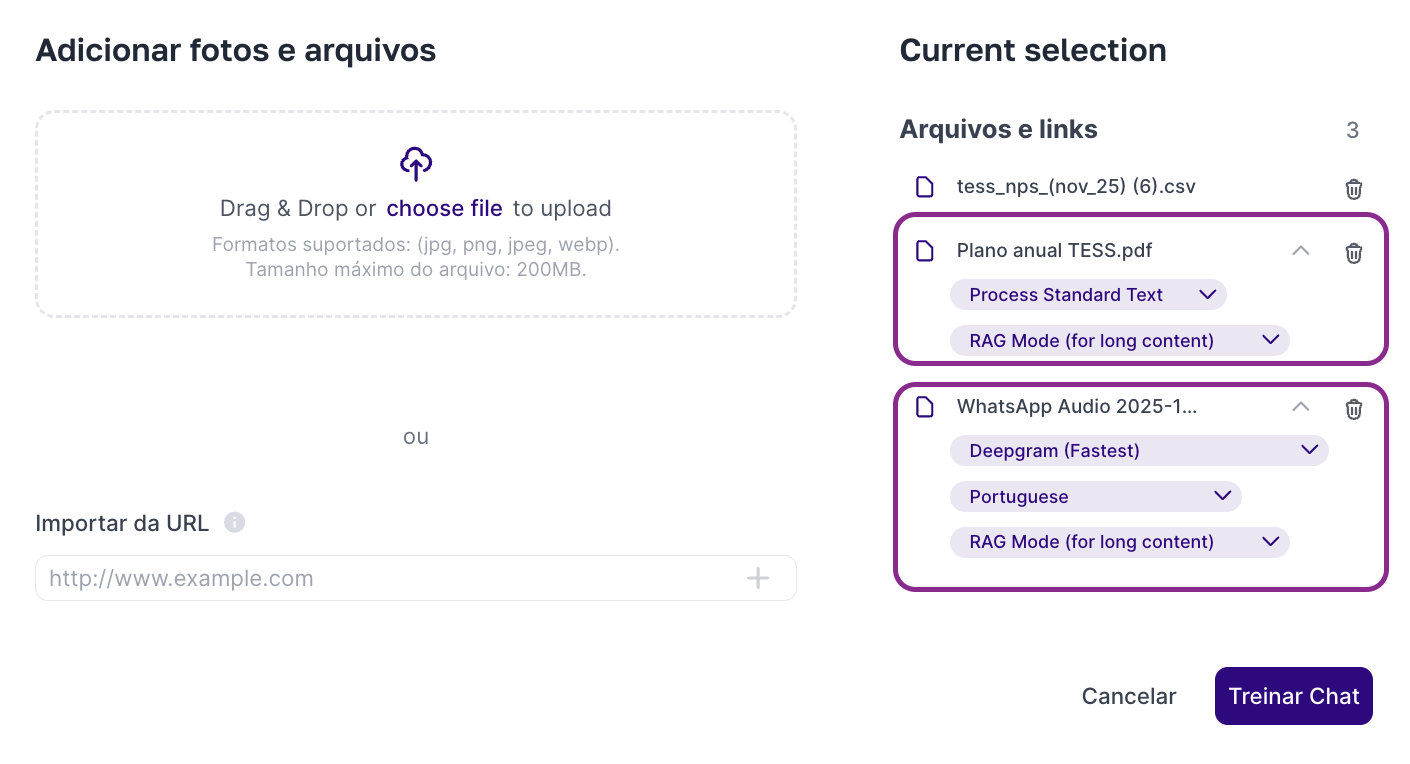
You can configure, for example:
A) Processing type between RAG and Deep Learning- RAG (retrieval): focuses on fetching relevant excerpts from the file to answer questions based on the content. Uses fewer credits.
- Deep Learning: focuses on deeper processing of the content, depending on the file type and the available feature. Uses more credits.
- PDF: You can choose how the PDF will be interpreted, for example:
- Text processing: ideal when the PDF is made of selectable text.
- OCR: ideal when the PDF contains any image, or is scanned and the AI needs to “read” text from text and images.
- MP3 and MP4: You can configure transcription parameters, for example:
- Language: helps the transcription be more accurate (especially in PT-BR, EN, ES, etc.).
- Transcription AI/model: choose between Deepgram, Assembly, Open AI, and Rev AI.
You can track everything that was sent to Tess (including uploads made in the chat) in the Knowledge Base under Settings.